
Features Dashboard
Your dashboard
All your courses, one home
Log in and see how everything's going: students, sales and questions waiting for you across every course you make, and what to do next.
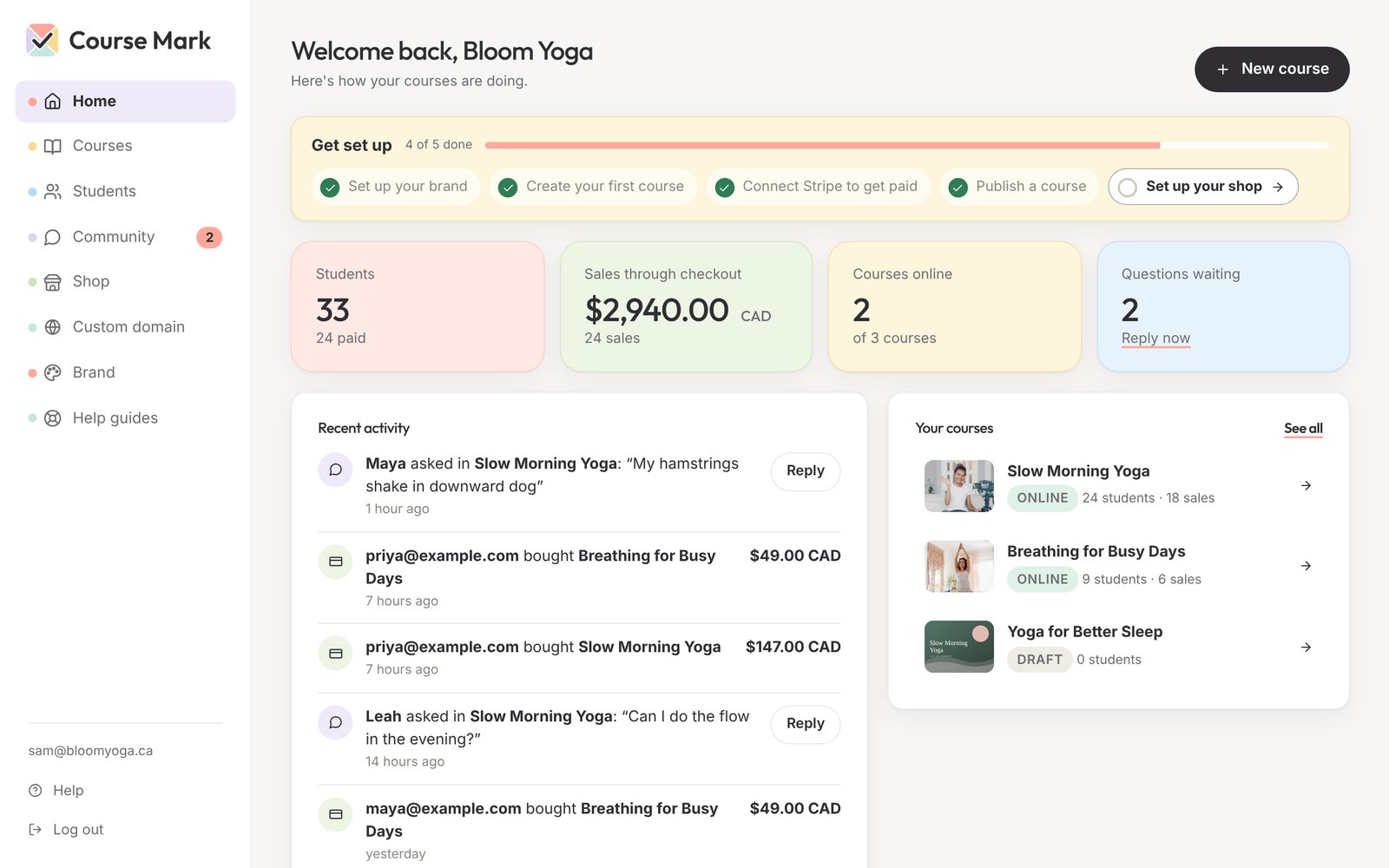
How it's going, first thing
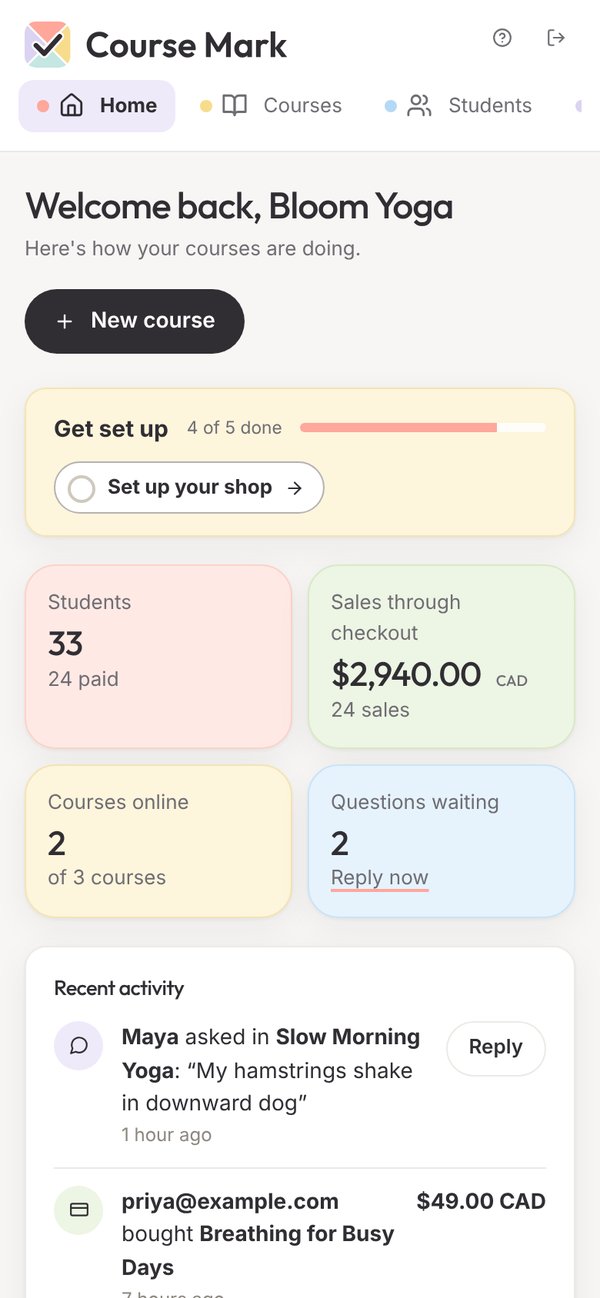
Home opens on four numbers, added up across all your courses.
- Students, and how many have paid
- Sales through your checkout, in each currency you sell in
- Courses online, out of all the courses you've made
- Questions waiting for a reply, with a link straight to them
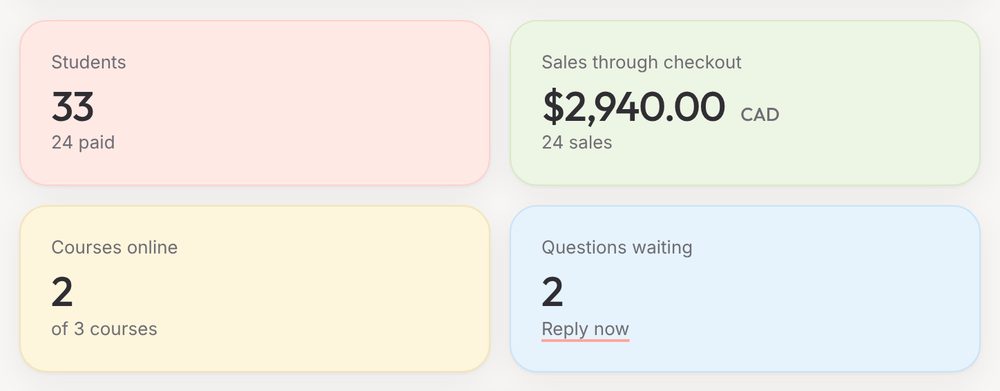
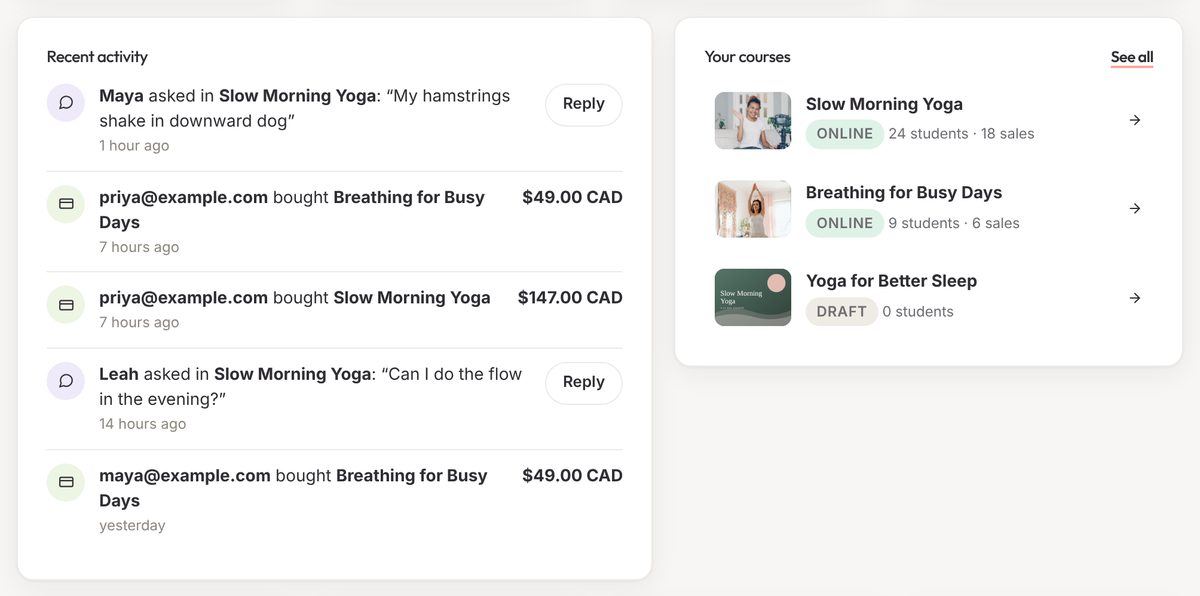
What's new, as it happens
Every sale, new student and question across your courses, newest first.
- A question comes with a Reply button that opens that course's Community tab
- Each sale shows who bought, which course and how much
- Your courses sit beside it: online or draft, with students and sales for each
- Start a new course from Home, or open any course in one click
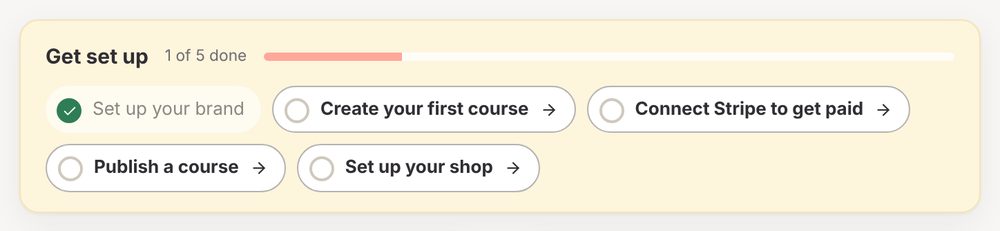
A checklist to get you started
New to Course Mark? Home shows five steps, and each one opens the right page. The checklist goes away once they're all done.
- Set up your brand
- Create your first course
- Connect Stripe to get paid
- Publish a course
- Set up your shop
Every student, in every course
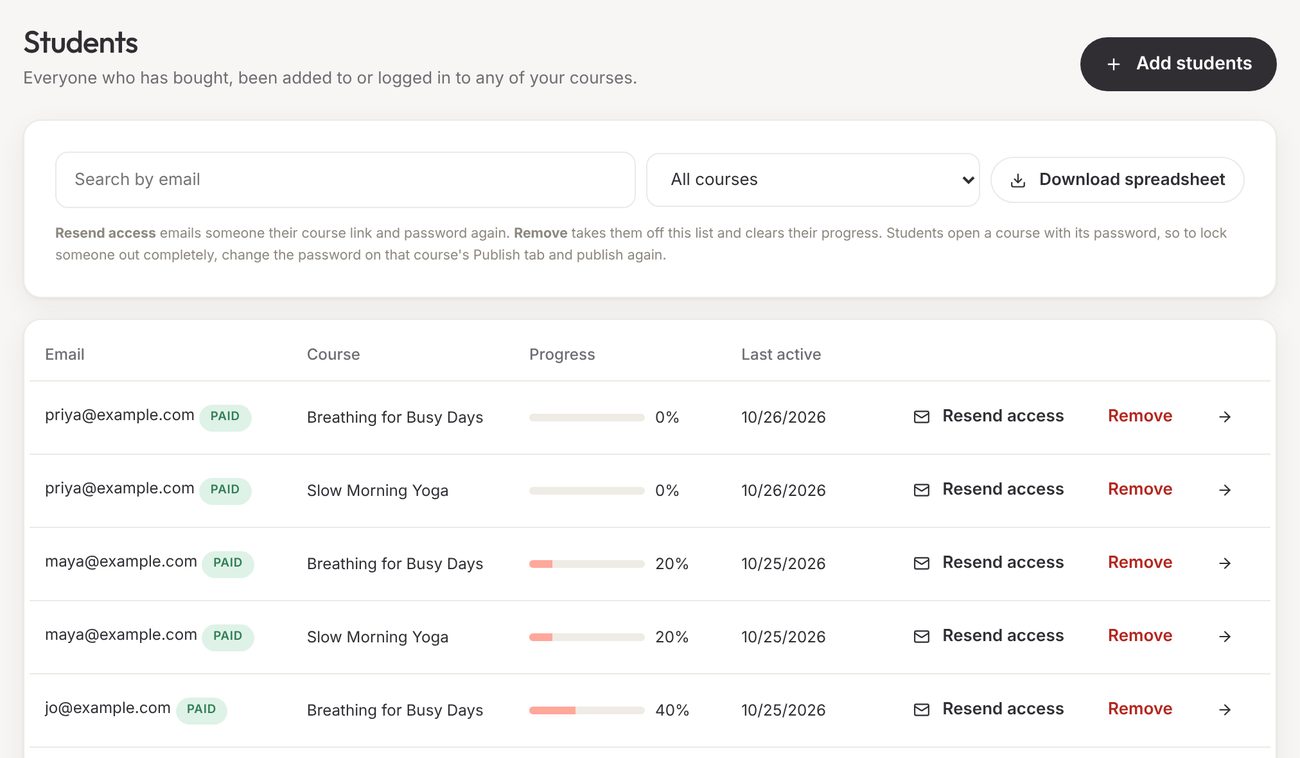
Everyone who has bought, been added to or logged in to any of your courses, on one page.
- Search by email, or show one course
- Add students who paid another way, and email them their course link and password
- Resend access when someone loses their email
- Remove someone, which clears their progress
- Download everyone as a spreadsheet
Every question, in one list
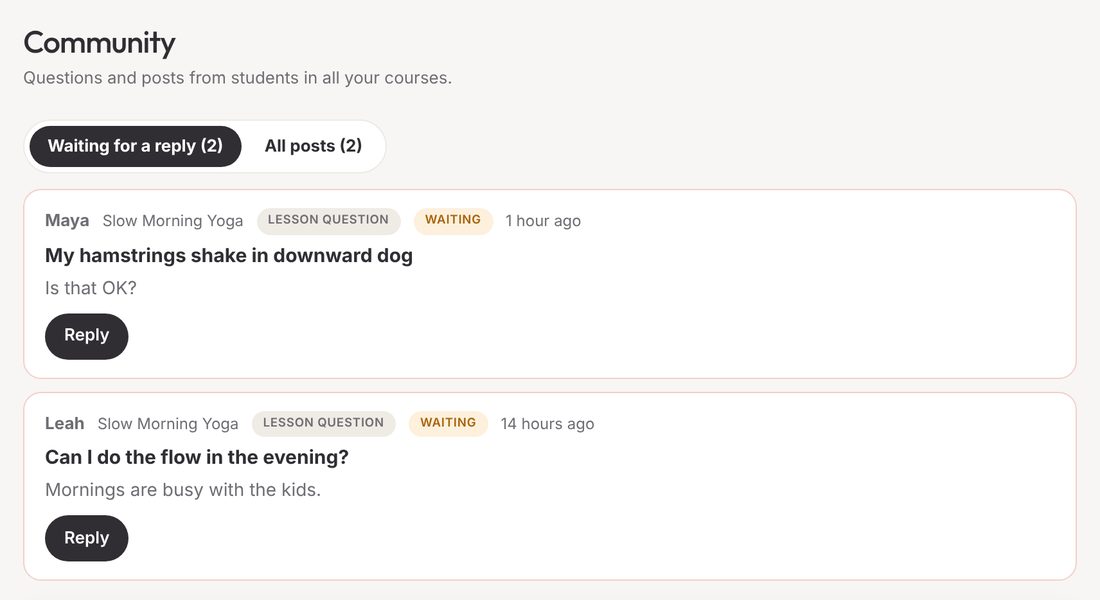
Questions and posts from students in all your courses, with the ones waiting for a reply first.
- Reply opens that course's Community tab, right on the post
- The number beside Community in the menu shows how many are waiting
- See which courses have questions switched on
Everything else, one click away
The menu keeps the rest of your account close, on a computer or a phone.
- Courses: every course you've made, online or draft
- Shop: one page with all your courses, in your brand
- Custom domain: your courses at your own web address
- Brand: your logo, colours and fonts, for every course
- On a phone, the menu sits along the top, and a refresh keeps you on the page you were on
Questions about the dashboard
Is the dashboard included?
Yes. It comes with every Course Mark account, at no extra cost.
Does the sales number include Payment Link sales?
No. It counts sales through your Course Mark checkout. If you use your own Stripe Payment Link, you'll find those sales in your Stripe dashboard, and those buyers still show up in Students once they log in.
Can I add a student who paid another way?
Yes. Choose Add students, type their emails and tick "They've paid me another way". You can have them emailed their course link and password at the same time.
What does Remove do?
It takes them off your list and clears their progress. Students open a course with its password, so to lock someone out completely, change the password on that course's Publish tab and publish again.
Where do I reply to questions?
On each course's Community tab. Reply on the dashboard takes you straight there.